🚀 Built for Salesforce Developers

End Salesforce Click Fatigue for good.

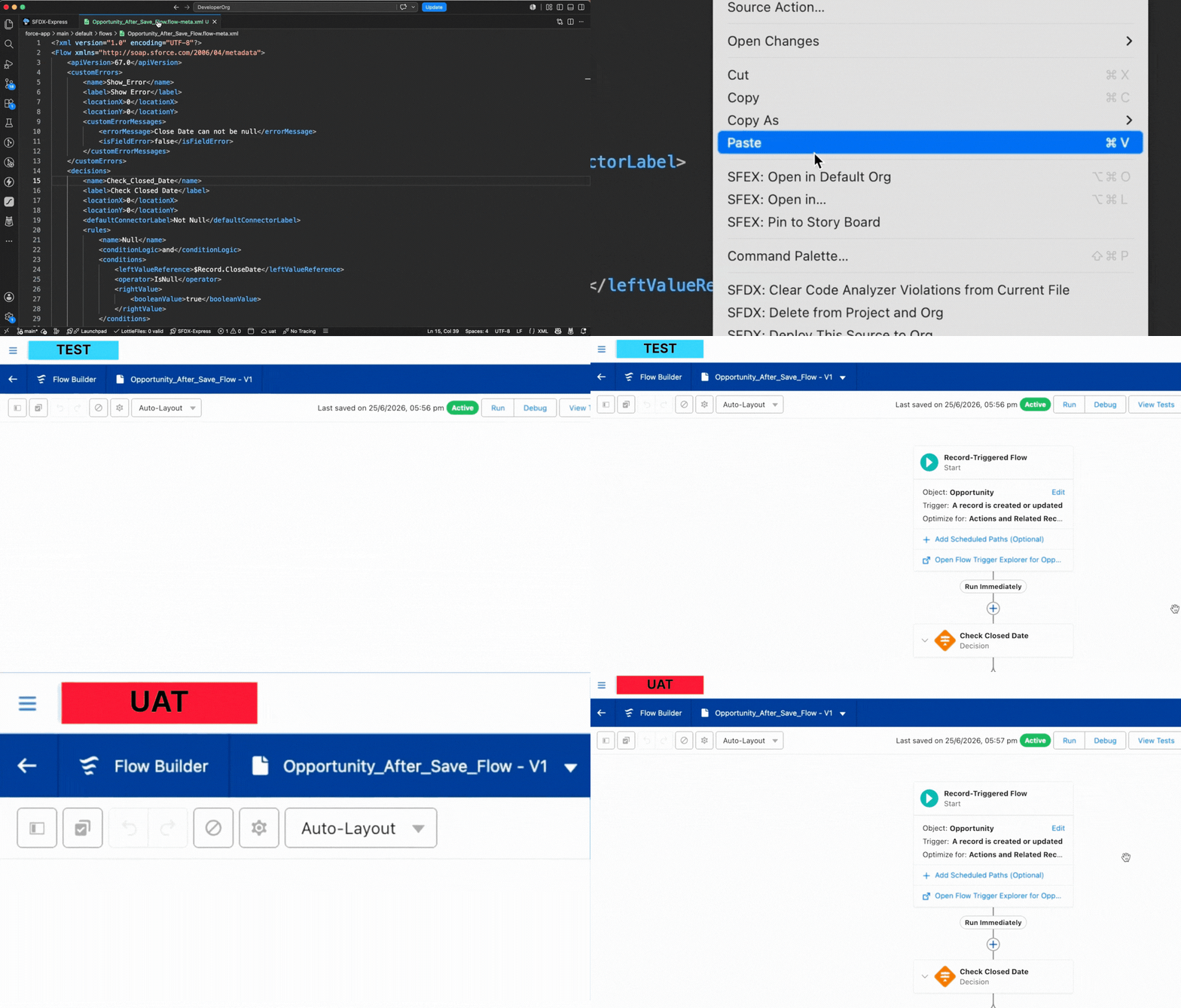
Go from a component file in VS Code to its page in Salesforce Setup in ~3 seconds. No endless clicking. No hunting by label. No re-typing passwords. Just right-click, pick your org, and launch.

Works the moment it sees sfdx-project.json · Uses your existing SFDX CLI auth · No credentials stored locally

70s → 3s
To open one component
30+ hrs
Saved every month
1 click
Across Dev, UAT & Prod
0
Passwords re-typed
💢 The Pain

You know the drill. And you hate it.

You found the field in VS Code. Now you just want to see it in Salesforce Setup. But first — the ritual:

Log in… again

Dig up the org URL and password from a sticky note.

Open Setup

Wait for the gear to load. Every. Single. Time.

Search by label

But you only know the API name. So now you guess.

Drill down

Object → Fields & Relationships → scroll → scroll…

Repeat per org

Now do it all over again in UAT. And Prod.

70–80 seconds of context-switching, hundreds of times a day.

💊 The PainKiller

Right-click. Pick the org. You're there.

SFDX-Express reads your project and takes you straight to the component page in Setup — by API name, label, or file path. See it in action:

One shortcut replaces a dozen clicks — across every sandbox you own.
⚖️ Before vs. After

Same goal. Wildly different journey.

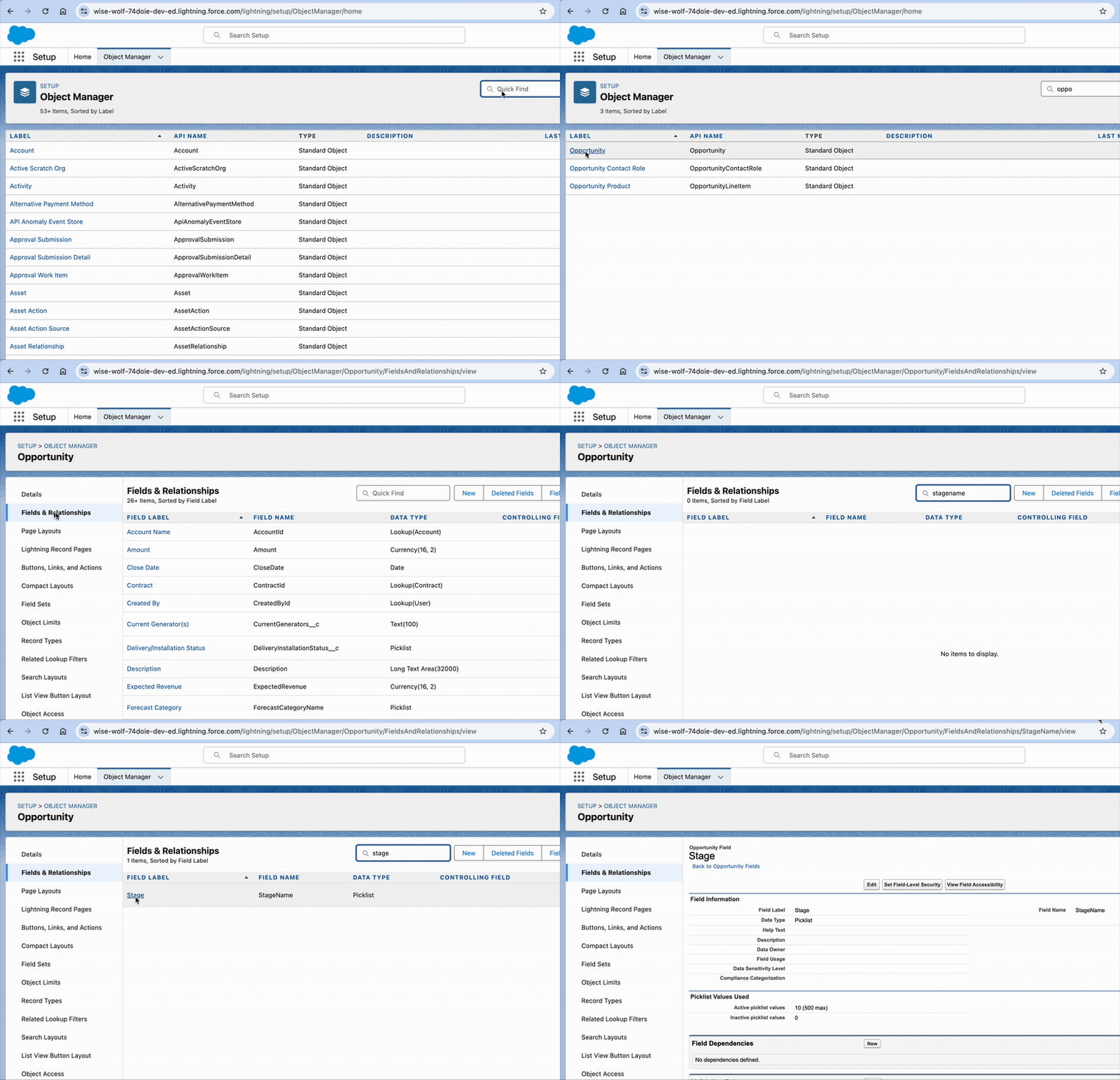
🐢 The Old Way
The slow, manual Salesforce navigation way
Setup → search “Custom Object” → find “Opportunity” → “Fields & Relationships” → scroll to “StageName”. A dozen clicks, every time.
⚡ The SFDX-Express Way
The fast SFDX-Express way
Right-click the file, choose the sandbox, hit launch. You're on the page in one click.
✨ Everything Inside

Features that give you your day back

Purpose-built for the way Salesforce developers actually work in VS Code.

Rapid Component Launch

Right-click any file, pick a sandbox, and land on its Setup page in seconds — not minutes.

🌐

Multi-Sandbox Support

Open the same component in Dev, Test, UAT, Staging, or Production without switching tabs or logins.

🔍

Global Org Explorer

Find any component by API name, label, or file path — search the way you actually remember things.

📌

Pin to Story Boards

Pin the components you touch most for instant retrieval — no more re-hunting the same field.

🗂️

Story Boards

Keep notes, SOQL queries, and pinned components organized per story or defect you're working on.

🔓

Passwordless Access

Rides on your existing SFDX CLI authorizations. Open orgs instantly — no passwords, ever.

🎯

Efficient Retrieval

Pull down a single component instead of an entire object. Grab exactly what you need.

🔒

Secure by Design

License checks run server-side and no credentials are stored locally — your orgs stay yours.

🛡️

Data Integrity

Your components, metadata, and notes never leave your machine. Nothing is stored on our servers — you keep full ownership and control of your data, always.

⚙️ How it Works

Live in under a minute

1

Install & open your project

Grab it from the Marketplace. It activates automatically when it spots your sfdx-project.json.

2

Right-click a component

Pick from your authorized orgs — Dev, UAT, Prod, or any sandbox you've connected.

3

Land on the page

You're dropped straight onto the component in Salesforce Setup. Pin it, note it, move on.

📋 At a Glance

SFDX-Express, in facts

Everything an evaluator needs on one screen — what it is, what it needs, and how it handles your data.

What it is A Visual Studio Code extension for Salesforce developers — not an AppExchange package or standalone app.
What it does Opens any Salesforce component's Setup page directly from its file in VS Code, in any authorized org, in ~3 seconds.
Core problem solved Eliminates the 70–80 second manual loop of logging in, opening Setup, searching by label, and drilling through menus — repeated hundreds of times a day.
Who it's for Salesforce developers, admins, consultants and delivery teams running multi-sandbox pipelines (Dev → Test → UAT → Production).
Supported orgs Dev, Test, UAT, Staging and Production.
Requirements VS Code · Salesforce CLI (SFDX) with an authorized org · a DX project containing sfdx-project.json (triggers auto-activation).
Platforms Windows, macOS and Linux.
Authentication Passwordless — reuses your existing SFDX CLI org authorizations. No Salesforce credentials are stored locally.
Where your data lives On your machine only. Components, metadata, notes and SOQL queries are never uploaded to or stored on our servers. License checks run server-side.
Pricing model Paid per-user subscription with a free trial. Monthly and annual plans, identical features; annual is discounted and price-locked for the term. Billing via Razorpay. Cancel anytime from within the extension.
Complements, not replaces Works alongside the Salesforce CLI, Salesforce Extensions for VS Code, and your CI/CD — it's a navigation and search layer, not a deployment or metadata-authoring tool.
Publisher Infonotics Softech Pvt Ltd (Infonotics Softwares), India · enquiries@infonotics.com
❓ Questions, Answered

Frequently asked questions

Everything Salesforce developers ask before switching from clicking to launching.

How do I go from a Salesforce component file to its Setup page?
Install SFDX-Express in VS Code, right-click the component file, choose the org you want (Dev, UAT, Production…), and it opens that component's page in Salesforce Setup in about 3 seconds — no manual navigation through menus.
What is the fastest way to open Salesforce Setup from VS Code?
SFDX-Express adds a right-click "launch" action to your Salesforce files. Instead of logging in, opening Setup, and drilling through menus (70–80 seconds), you reach the exact component page in roughly 3 seconds.
Does SFDX-Express work with multiple Salesforce sandboxes?
Yes. It supports Dev, Test, UAT, Staging and Production orgs. You pick the destination org each time you launch a component, using your existing SFDX CLI authorizations.
Do I need to enter my Salesforce password each time?
No. SFDX-Express uses your existing SFDX CLI authorizations to open orgs, so you never re-enter credentials. No passwords are stored locally, and license checks run server-side.
What Salesforce productivity tools does SFDX-Express include?
A global Org Explorer to search components by API name, label or file path; Story Boards to pin components and keep per-story notes and SOQL queries; multi-sandbox launching; passwordless org access; and single-component retrieval.
Does any Salesforce data leave my machine?
No. SFDX-Express is local-first: your components, metadata, notes and SOQL queries stay on your computer and are never uploaded to or stored on our servers. We collect only limited account details and usage counts to operate your licence and report time saved. License validation runs server-side, and no Salesforce credentials are stored locally.
Who is SFDX-Express for?
Salesforce developers, admins and consultants working in VS Code on Salesforce DX projects, and teams running a multi-sandbox pipeline (Dev → Test → UAT → Production). It’s the best fit when engineers routinely inspect a component in Setup while reading its source — and not a fit for teams who don’t use VS Code or Salesforce DX.
Does it replace the Salesforce CLI or Salesforce Extensions for VS Code?
No — it complements them. SFDX-Express is a navigation, search and organisation tool, not a deployment, testing or metadata-authoring tool. It relies on the Salesforce CLI for org authorization and removes the repetitive step of getting from a file to the matching Setup page in the right org.
What does it cost, and is there a free trial?
SFDX-Express is a paid per-user subscription with a free trial. Monthly and annual plans include an identical feature set; the annual plan is discounted relative to twelve monthly cycles and locks your price for the term. Current pricing is shown on the VS Code Marketplace listing and at checkout. Billing is handled by Razorpay, and you can cancel any time from within the extension.
What do I need before installing?
Visual Studio Code, the Salesforce CLI (SFDX) with at least one authorized org, and a Salesforce DX project containing sfdx-project.json — the extension activates automatically when it detects that file. Runs on Windows, macOS and Linux.
How much time does it actually save?
Opening a component through Setup manually — logging in, opening Setup, searching by label, drilling through menus — typically takes 70–80 seconds. SFDX-Express reduces that to roughly 3 seconds per component, an estimated 30+ hours saved per developer per month. These are our own estimates based on typical Setup navigation, not independently audited benchmarks.

Stop clicking. Start shipping.

Join the developers logging out 60 minutes early — because they stopped losing them to Salesforce Setup.